
How to Fix “Your Connection is Not Private” Errors on Chrome: Advanced Troubleshooting Guide

Introduction
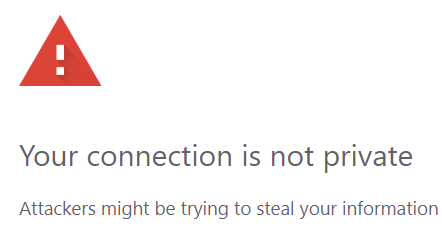
The “Your connection is not private” error in Chrome can pop up when trying to access various websites, even secure ones. While it’s a common warning, it’s also a frustrating one, especially when you need to get online quickly. This guide will walk you through advanced fixes for resolving this error, going beyond basic troubleshooting to address the less obvious causes.
1. Check System Date and Time Settings
- Why it matters: Incorrect date and time settings on your device can lead to certificate validation errors, triggering the “Your connection is not private” warning.
- How to fix it:
- On Windows: Go to Settings > Time & Language and turn on “Set time automatically.”
- On macOS: Go to System Preferences > Date & Time and check the “Set date and time automatically” box.
- Pro Tip: For long-term accuracy, enable automatic time synchronization with an NTP server in your system settings.
2. Clear SSL State on Your Device
- Why it helps: Over time, SSL state can build up and cause connection errors. Clearing it can fix “Your connection is not private” warnings if SSL mismatches are causing issues.
- How to clear SSL state:
- On Windows: Open Control Panel > Internet Options > Content, and click “Clear SSL State.”
- Restart your browser and check if the error persists.
3. Update or Reinstall Your Browser
- Why it’s important: Outdated versions of Chrome may not support the latest security protocols, causing SSL/TLS mismatches.
- How to update:
- In Chrome, go to Settings > About Chrome to check for updates.
- Reinstalling Chrome: If updating doesn’t help, consider reinstalling Chrome to eliminate any corrupted files.
4. Disable VPN or Proxy Temporarily
- Why it matters: VPNs or proxies can interfere with SSL certificates, especially if they’re routing through an insecure server.
- Solution:
- Disable your VPN or proxy in Settings > Network & Internet > VPN/Proxy and then refresh the page. If the site loads, try switching to a different VPN server, as some are more compatible with SSL sites than others.
5. Check for Antivirus or Firewall Interference
- Why it helps: Some antivirus software has a feature that filters SSL, which can cause certificate errors in Chrome.
- How to fix it:
- Open your antivirus software and look for settings related to “SSL Scanning” or “HTTPS Scanning.”
- Disable SSL Scanning temporarily and try accessing the website again.
- Note: If this resolves the issue, consider keeping this setting off, but remember that it may reduce protection.
6. Manually Clear Chrome’s Certificate Cache
- Why it’s necessary: Chrome may cache certificates from previously visited sites, which can cause conflicts with updated certificates.
- How to clear the certificate cache:
- In Chrome’s address bar, type
chrome://settingsand go to Privacy and security > Clear browsing data. - Select Cached images and files and clear the cache.
- In Chrome’s address bar, type
- Pro Tip: Alternatively, use Chrome’s DevTools (F12 or right-click > Inspect) to refresh the page with a hard reload (
Ctrl + Shift + R).
7. Flush Your DNS Cache
- Why it helps: Cached DNS entries can sometimes point to outdated servers, resulting in certificate mismatches and the “Your connection is not private” error.
- How to flush DNS:
- On Windows: Open Command Prompt as an administrator and type
ipconfig /flushdns. - On macOS: Open Terminal and type
sudo dscacheutil -flushcache; sudo killall -HUP mDNSResponder.
- On Windows: Open Command Prompt as an administrator and type
8. Advanced: Manually Import the SSL Certificate
- Why it’s useful: Sometimes, manually importing a site’s SSL certificate can bypass Chrome’s “Your connection is not private” error.
- How to import SSL certificates:
- Download the certificate file from the website or retrieve it via another trusted browser.
- Open Control Panel > Internet Options > Content > Certificates, click “Import,” and select the certificate file.
- Restart Chrome and try re-accessing the site.
9. Update Your Operating System
- Why it’s necessary: Outdated OS security protocols may be incompatible with Chrome’s SSL/TLS requirements, especially on older systems.
- Solution:
- Go to Settings > Update & Security (on Windows) or System Preferences > Software Update (on macOS) and check for updates.
10. Contact the Website’s Administrator (As a Last Resort)
- Why it’s relevant: If none of the above fixes work, the issue might be on the website’s end. If the site administrator is aware of an issue, they may be able to update or renew their SSL certificate.
- How to reach out: Look for a contact email, social media, or support forum for the website and mention the specific error you’re encountering.
Conclusion
If you’re facing a “Your connection is not private” error in Chrome, the above troubleshooting steps should cover almost every possible cause. Begin with basic steps like clearing the SSL state or disabling your VPN and, if necessary, try more advanced solutions like manually importing certificates. Hopefully, these steps get you back online securely!
By following this guide, you’ll not only fix the error but gain a better understanding of SSL security and how your browser protects your privacy.


