How To Fix Mail App Showing Unread Emails on iPhone When There Are None


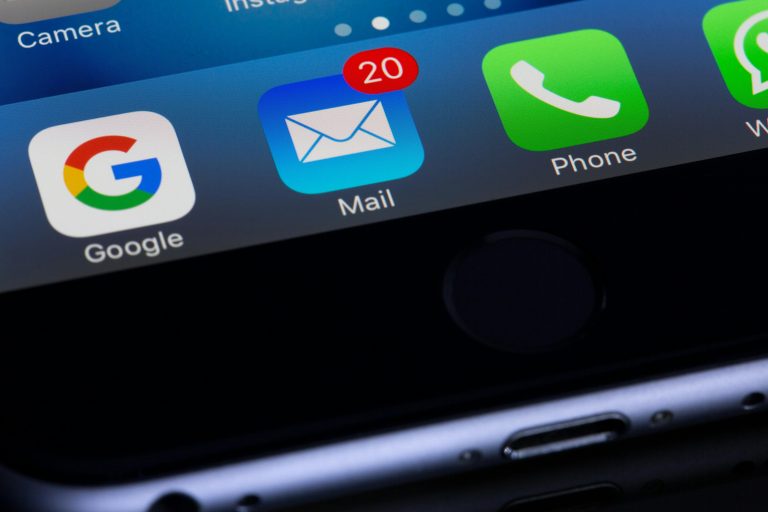
Introduction: Experiencing the issue where your iPhone’s Mail app displays unread emails, even though your inbox is empty, can be frustrating. This discrepancy between what the app indicates and the actual contents of your inbox can disrupt your workflow and cause unnecessary stress. Fortunately, there are several steps you can take to resolve this issue and restore the Mail app’s functionality. This guide will walk you through the troubleshooting process to help you fix the problem efficiently.
Step 1: Refresh Your Inbox
- Open the Mail app on your iPhone.
- Navigate to the inbox where you’re experiencing the issue.
- Swipe down from the top of the inbox to initiate a manual refresh.
- Allow the app to synchronize with your email server and update the inbox contents.
- Check if the unread email count has been corrected. If not, proceed to the next step.
Step 2: Mark All Emails as Read
- In the Mail app, tap “Edit” in the top-right corner of the inbox screen.
- Select “Mark All” at the bottom-left corner of the screen.
- Choose “Mark as Read” from the options that appear.
- Confirm your selection to mark all emails in the inbox as read.
- Exit the editing mode and return to the inbox to see if the unread email count has been resolved.
Step 3: Restart the Mail App
- Close the Mail app completely by double-clicking the Home button (or swiping up from the bottom of the screen) to access the App Switcher.
- Swipe up on the Mail app’s preview to force quit it.
- Wait a few seconds, then reopen the Mail app from your home screen.
- Check if the issue persists. If it does, move on to the next step.
Step 4: Reboot Your iPhone
- Press and hold the power button (located on the side or top of your iPhone) until the “Slide to Power Off” slider appears.
- Slide the slider to power off your iPhone completely.
- Once your iPhone is turned off, press and hold the power button again until the Apple logo appears.
- Release the power button and wait for your iPhone to restart.
- After the restart, open the Mail app and check if the problem has been resolved.
Step 5: Update iOS and Mail App
- Ensure that your iPhone is running the latest version of iOS. Go to Settings > General > Software Update to check for any available updates and install them if necessary.
- Similarly, check for updates to the Mail app. Open the App Store, go to the “Updates” tab, and see if there’s an update available for the Mail app. If so, download and install it.
- After updating both iOS and the Mail app, relaunch the Mail app and verify if the issue persists.
Step 6: Remove and Re-add Email Account
- If none of the previous steps have resolved the issue, you may need to remove and re-add your email account to the Mail app.
- Go to Settings > Mail > Accounts on your iPhone.
- Select the email account that is experiencing the problem.
- Tap “Delete Account” and confirm the removal of the account.
- After removing the account, go back to the Mail settings and select “Add Account” to reconfigure the email account on your iPhone.
- Follow the on-screen instructions to add the account back to the Mail app.
- Once the account is re-added, check if the issue has been resolved.
Conclusion: By following these troubleshooting steps, you should be able to resolve the issue of the Mail app showing unread emails on your iPhone when there are none in your inbox. If the problem persists after attempting all the steps outlined in this guide, it may be necessary to contact Apple Support or your email service provider for further assistance.