
How to Fix Common Printer Problems

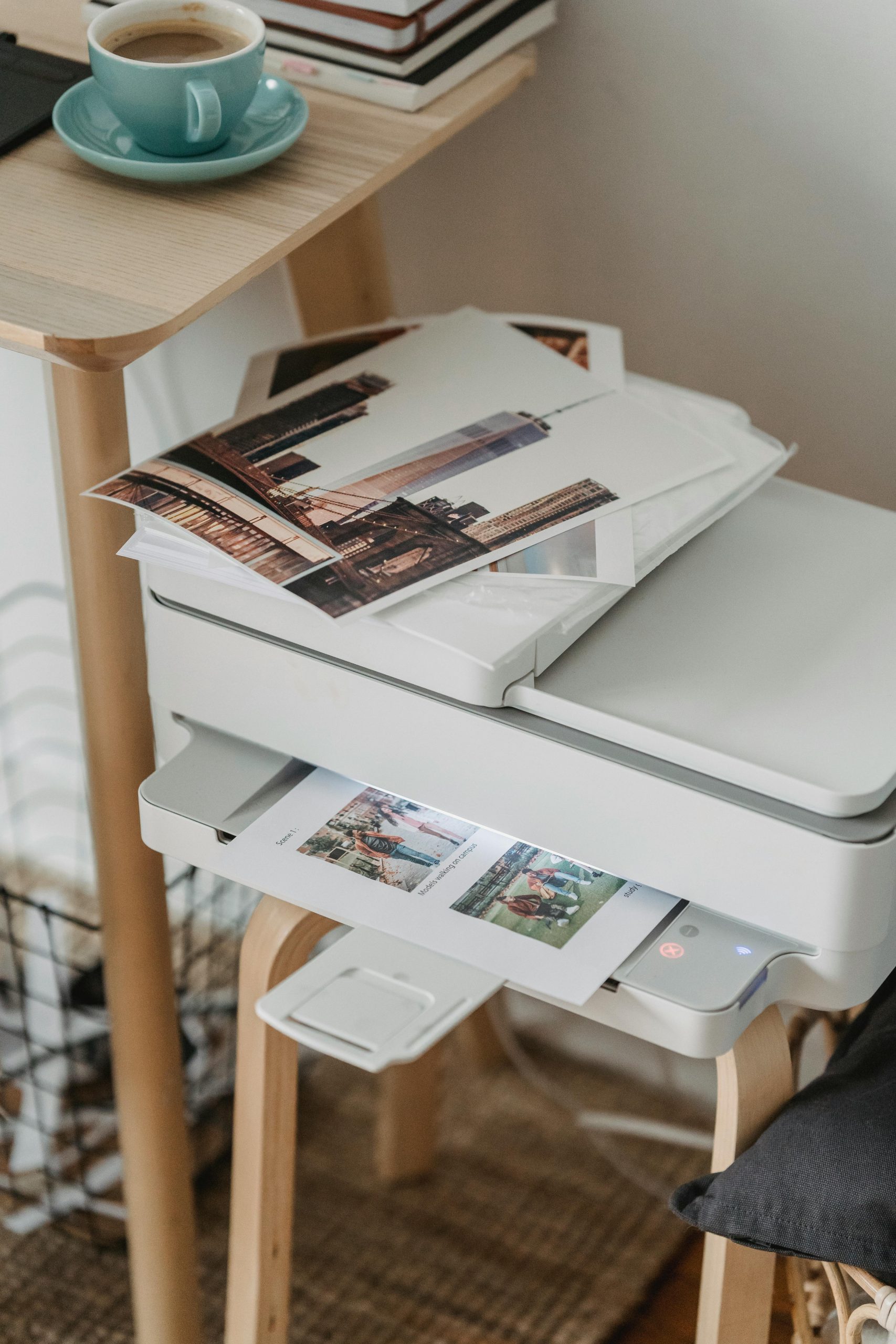
Printers are great—until they’re not. Whether it’s refusing to print, throwing error messages, or running out of ink at the worst possible time, printers are notorious for causing frustration. Here’s a guide to troubleshoot and fix common printer issues.
1. Problem: Printer Won’t Print
You hit “Print,” but nothing happens.
Fixes:
- Check Connections:
- Ensure the printer is plugged in and powered on.
- For wired printers, make sure the USB cable is securely connected.
- For wireless printers, verify that the printer is connected to your Wi-Fi network.
- Set the Printer as Default:
- On Windows:
- Go to Settings > Devices > Printers & Scanners.
- Select your printer and click Set as Default.
- On Mac:
- Go to System Preferences > Printers & Scanners, and ensure your printer is selected.
- On Windows:
- Clear the Print Queue:
- A stuck job in the print queue can block other jobs. Open the printer settings and clear the queue.
2. Problem: Paper Jams
The printer is making grinding noises or flashing an error, and you suspect a paper jam.
Fixes:
- Turn Off the Printer:
- Power off the printer before attempting to remove the jammed paper to avoid damaging internal components.
- Remove Paper Carefully:
- Open the printer’s access panel and gently pull out any stuck paper. Be sure to remove all torn pieces.
- Check the Paper Path:
- Inspect rollers and the paper tray for debris or obstructions.
- Load Paper Properly:
- Align the paper neatly in the tray and don’t overfill it.
3. Problem: Printer Says It’s Out of Ink (But It’s Not)
Your printer insists it’s out of ink even though you just replaced the cartridges.
Fixes:
- Reinstall the Cartridge:
- Remove the cartridge, clean the contacts with a soft cloth, and reinstall it securely.
- Reset the Ink Levels:
- Some printers have a reset function in the settings to recalibrate ink levels.
- Update Printer Drivers:
- Outdated drivers can cause miscommunication between the printer and your computer. Update them from the manufacturer’s website.
- Check for Clogged Nozzles:
- Run a printer cleaning cycle to clear any blockages.
4. Problem: Printer Prints, but Quality Is Poor
The document prints, but it’s blurry, streaky, or missing sections.
Fixes:
- Check the Ink or Toner Levels:
- Low ink or toner can affect print quality. Replace if necessary.
- Clean the Print Heads:
- Most printers have a cleaning function in the settings menu. Run this to clear clogged nozzles.
- Use the Right Paper:
- Ensure you’re using the correct paper type for your printer, as cheap or incorrect paper can lead to smudging.
- Align the Print Heads:
- Many printers allow you to align the heads through the software. This can improve accuracy.
5. Problem: Printer Won’t Connect to Wi-Fi
Your wireless printer isn’t showing up on your network.
Fixes:
- Check Wi-Fi Signal Strength:
- Ensure the printer is within range of your router. Move it closer if necessary.
- Reconnect to the Network:
- On the printer’s control panel, navigate to the Wi-Fi settings and reconnect to your network.
- Restart the Router and Printer:
- Power cycle both devices to resolve temporary glitches.
- Assign a Static IP Address:
- Sometimes, assigning a static IP to your printer in the router settings can prevent connectivity issues.
6. Problem: Printer Is Too Slow
Your printer is taking its sweet time to print even the simplest documents.
Fixes:
- Switch to Draft Mode:
- In the printer settings, select “Draft” or “Fast” mode to speed up printing.
- Reduce Print Quality:
- High-quality settings can slow down printing. Lower the resolution if high quality isn’t necessary.
- Print Fewer Pages at Once:
- Printing large files in smaller chunks can sometimes speed up the process.
7. Problem: Printer Won’t Print in Color
Your printer is stuck in black-and-white mode even when you want color prints.
Fixes:
- Check the Print Settings:
- Ensure the “Grayscale” or “Black-and-White” option isn’t selected in your print dialog.
- Replace the Color Cartridges:
- Empty or dried-out cartridges can cause this issue. Replace them if needed.
- Clean the Print Heads:
- Run a cleaning cycle to ensure the color nozzles aren’t clogged.
8. Problem: Printer Isn’t Recognized by Your Computer
You connect the printer, but your computer acts like it doesn’t exist.
Fixes:
- Update the Printer Drivers:
- Visit the manufacturer’s website to download and install the latest drivers.
- Add the Printer Manually:
- On Windows:
- Go to Settings > Devices > Printers & Scanners.
- Click Add a Printer or Scanner and follow the prompts.
- On Mac:
- Go to System Preferences > Printers & Scanners, and click the “+” button to add your printer.
- On Windows:
When All Else Fails: Contact Support
If you’ve tried all the fixes above and your printer still isn’t cooperating, it might be time to contact the manufacturer’s support team or take it to a professional for repair.
Now, you’re ready to tackle your printer problems like a pro. Happy printing! 🖨️


