
Speed Up Your Slow Laptop: Troubleshooting Tips

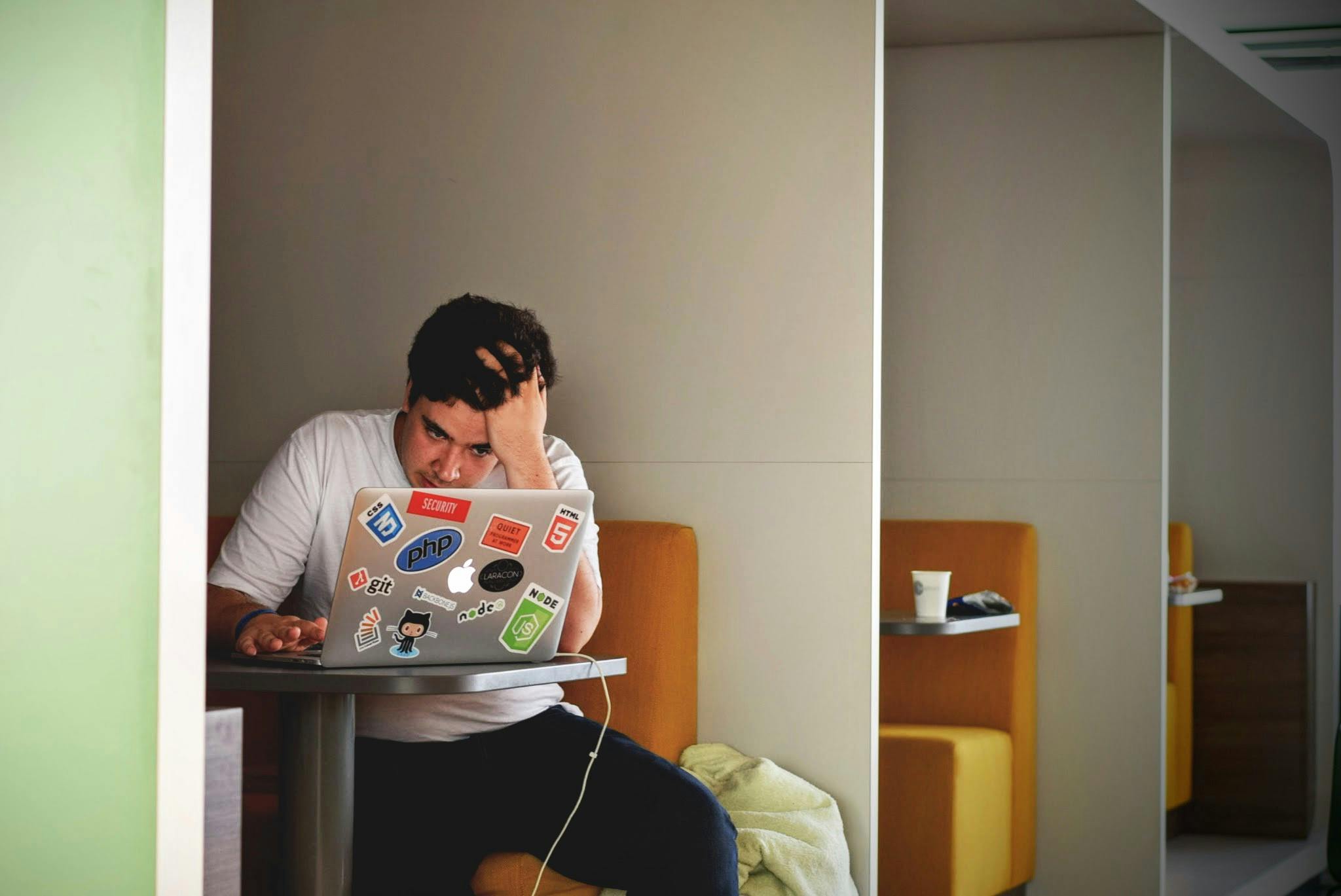
Is your once-speedy laptop feeling more like a tortoise than a hare? Don’t worry; you’re not alone. Over time, laptops can start to slow down due to various factors, from software issues to hardware limitations. But before you decide it’s time for a costly upgrade or replacement, let’s troubleshoot some common problems and see if we can breathe new life into your sluggish machine.
1. Check for Malware and Viruses: Malicious software can significantly slow down your laptop’s performance. Run a full system scan using reputable antivirus software to detect and remove any malware or viruses lurking in the shadows.
2. Clean Up Your Hard Drive: A cluttered hard drive can impede your laptop’s performance. Delete unnecessary files, uninstall unused programs, and use disk cleanup tools to free up space. Consider moving large files like videos or photos to an external drive or cloud storage to lighten the load on your system.
3. Manage Startup Programs: Too many programs launching at startup can prolong the boot-up process and consume valuable system resources. Disable unnecessary startup programs using the Task Manager (Windows) or System Preferences (Mac). Keep only essential programs set to launch automatically.
4. Update Software and Drivers: Outdated software and drivers can cause compatibility issues and decrease system performance. Ensure that your operating system, drivers, and applications are up to date. Automatic updates can help keep everything current and running smoothly.
5. Optimize Power Settings: Adjusting power settings can help conserve battery life and optimize performance. On Windows, navigate to Power Options in the Control Panel to customize power plans. Mac users can adjust energy-saving settings in System Preferences. Choosing a balanced power plan can strike a harmony between performance and energy efficiency.
6. Upgrade Hardware Components: If your laptop is still struggling after software optimizations, it might be time to consider hardware upgrades. Adding more RAM can improve multitasking capabilities, while upgrading to a solid-state drive (SSD) can significantly boost system speed and responsiveness.
7. Keep Your System Cool: Overheating can throttle your laptop’s performance and potentially damage internal components. Ensure proper ventilation by cleaning dust from vents and using a laptop cooling pad for additional airflow. Avoid using your laptop on soft surfaces that can obstruct airflow.
8. Reset Your Laptop: As a last resort, performing a factory reset can restore your laptop to its original state, eliminating any software issues that may be causing slowdowns. Remember to back up your important files before initiating a reset, as this process will erase all data on your laptop.
By following these troubleshooting tips, you can potentially breathe new life into your slow laptop and enjoy smoother performance without breaking the bank. Remember that regular maintenance and care are key to keeping your laptop running smoothly in the long run. If problems persist, don’t hesitate to seek professional assistance to diagnose and resolve underlying issues.


